Help Topics
Import, AI Prompt Kit & Backups
Never re-type a travel list by hand. Paste lists from anywhere, migrate from Mapstr or Google Maps, or export your entire workspace with zero lock-in.
1. AI Trip Kit (Deep-Research Prompt)
Open Import → AI Trip Kit, enter your destination and preferences, and copy the generated prompt into ChatGPT, Claude, or Gemini.
Paste the AI's JSON output back into step 2 to create the city, categorized pins, itinerary order, and #PlaceName-linked notes in one shot.
2. Paste List, Mapstr (CSV/KML) & Google Takeout
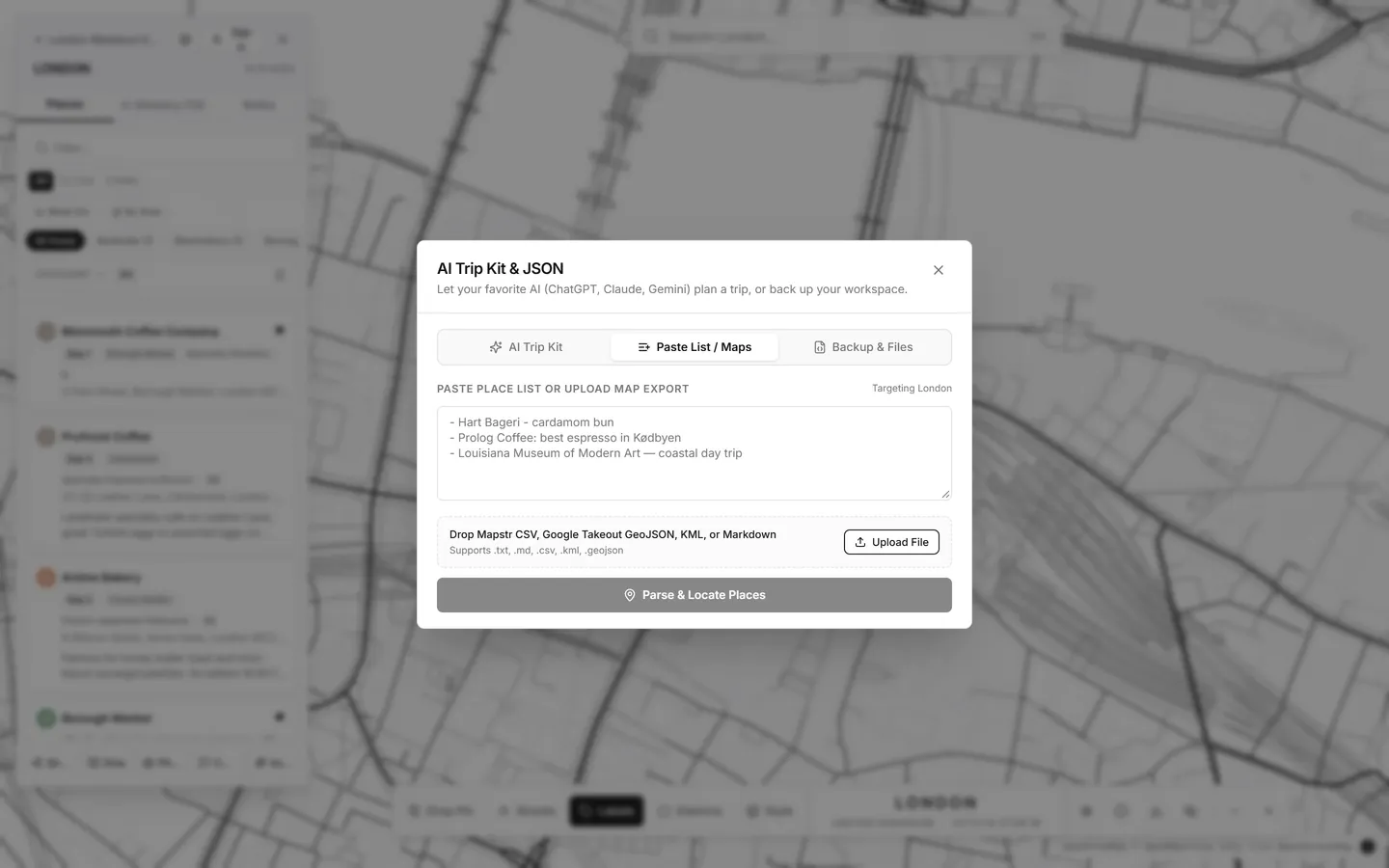
Switch to the Paste List / Maps tab to import from almost any source:
- Plain Text or Markdown Lists: Paste bullet lists from Apple Notes, Notion, or emails—PlanCityTrips geocodes each line inside the active city and lets you review/adjust categories before saving.
- Mapstr: Upload your Mapstr
.csvor.kmlexport. - Google Maps Takeout: Drop your Google Takeout
Saved Places.json/.geojsonfile.
3. Full JSON & GeoJSON Backups
Under Backup & Files, export either your entire workspace (all trips, cities, pins, custom
categories, and colors) or a single city as structured .json or standard .geojson.
Re-importing a backup lets you merge safely or replace.